
.NET
Endless Lifecycle Support (ELS) for .NET from TuxCare provides security fixes for .NET that has reached its end of life. This allows you to continue running .NET applications without vulnerability concerns, even after official support has ended.
Supported Versions
| Windows Version | .NET 1.1 | .NET 2.0 | .NET 2.2 | .NET 6 | .NET 8 | .NET 10 | Architectures |
|---|---|---|---|---|---|---|---|
| Nano Server 2019, 2022 | — | — | ✓ | ✓ | ✓ | ✓ | x64 |
| Nano Server 2025 | — | — | ✓ | — | ✓ | ✓ | x64 |
| Windows 11 (24H2, 23H2, 22H2 E/Edu) | ✓ | ✓ | ✓ | ✓ | ✓ | ✓ | x64 |
| Windows 10 (22H2) | ✓ | ✓ | ✓ | ✓ | ✓ | ✓ | x64 |
| Windows Server 2025 | ✓ | ✓ | ✓ | — | ✓ | ✓ | x64 |
| Windows Server 2022, 2019, 2016, 2012-R2, 2012 | ✓* | ✓ | ✓ | ✓ | ✓ | ✓ | x64, x86 |
| Windows Server Core 2022, 2019, 2016, 2012-R2, 2012 | ✓* | ✓ | ✓ | ✓ | ✓ | ✓ | x64, x86 |
* .NET 1.1 supports Windows Server 2012 R2 and later; Windows Server 2012 is not supported.
Other versions and architectures available upon request. Contact [email protected] for more information.
Available Runtimes
Choose the component that fits your use case. For more details, refer to the official .NET documentation. TuxCare applies security patches to .NET for the above OS versions, ensuring continued stability and security even beyond the official end-of-life date.
The .NET SDK (Software Development Kit) is the recommended option if you plan to develop, build, test, or publish .NET applications. It includes the .NET Runtime (required to run .NET apps), the ASP.NET Core Runtime (for hosting web applications out of the box), and the .NET CLI and build tools for compiling and managing your projects.
With the SDK, you won't need to install separate runtimes for ASP.NET Core or the Desktop environment — the SDK bundles everything together to streamline development and deployment.
Installation
TuxCare provides three ways to install ELS .NET on Windows: the TuxCare Installer (recommended) — a graphical tool that installs and removes .NET runtimes and SDKs, the PowerShell script that does the same from the command line, or manual installation of the .NET setup files from the repository.
Prerequisites
- A valid TuxCare ELS license key — contact [email protected] to obtain one
- Administrator access to the Windows system
- A supported Windows version — see the compatibility table above
Customers who previously received an authentication token can continue to use it: select Use previous token in the TuxCare Installer, or use the tokenized URL for manual installation.
TuxCare Installer installs and removes ELS .NET runtimes and SDKs through a graphical interface on Windows Server 2019, 2022, and 2025.
Download the installer and launch it
Download the installer from the following link:
https://windows.tuxcare.com/TuxCare.Installer.exeRun the downloaded file. After the first run, the installer appears under Settings > Apps.
Register with your license key
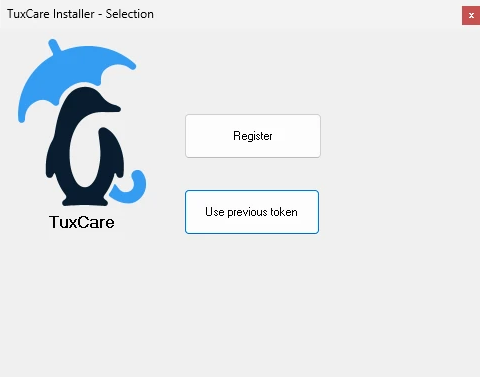
If you registered on this machine before, the installer first shows Register and Use previous token. Click Use previous token to keep the current registration and go straight to the product list (step 3), or Register to register again with a license key, which releases the current registration. New customers do not see this screen and start from the next one.
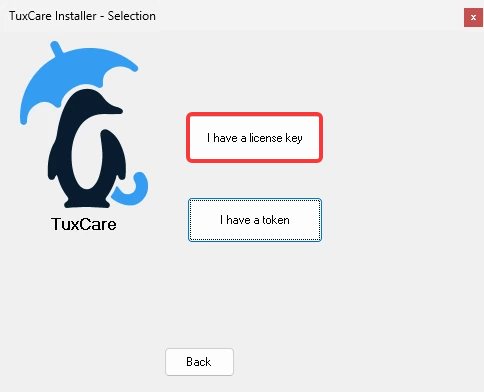
Click I have a license key.
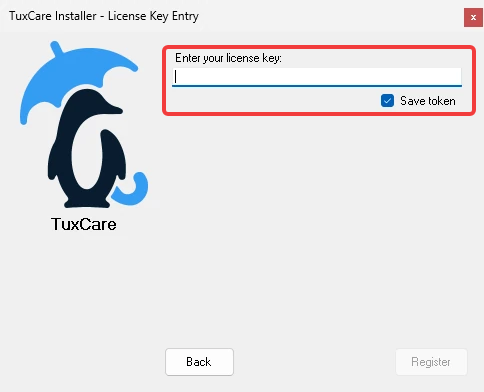
Enter your license key and click Register. Keep Save token ticked to reuse the registration next time.
If you have an authentication token instead of a license key, click I have a token.
Select the .NET runtimes and SDKs
The installer lists the products of your license. Under .NET, expand a version (for example, 6.0) and a build (for example, 6.0.37-tuxcare.1), and tick the installers you want:
Installer Description dotnet-runtime-<version>-win-<arch>.exe.NET Runtime aspnetcore-runtime-<version>-win-<arch>.exeASP.NET Core Runtime windowsdesktop-runtime-<version>-win-<arch>.exe(or.msi)Windows Desktop Runtime dotnet-sdk-<version>-win-<arch>.exe.NET SDK (includes the runtimes) <arch>in the file nameArchitecture: x64orx86You can select several installers from several versions at once — the installer puts .NET versions side by side.
When your selection is ready, click Continue.
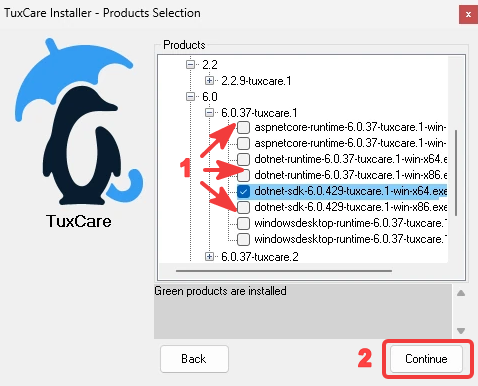
The installer highlights already installed files in green and ticks them. To uninstall one, untick it and click Continue. Continue stays disabled until you change the selection.
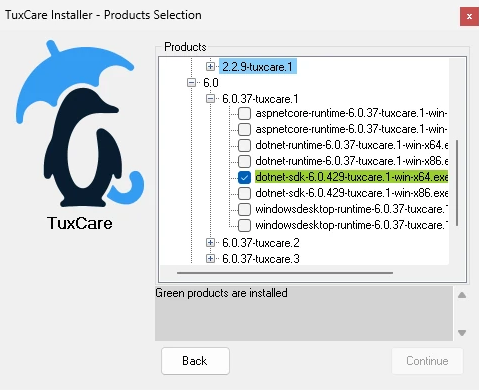
If your license does not cover a product, it is shown as .NET (Not Authenticated) with nothing to select.
Install
The installer downloads each selected file and runs it silently.
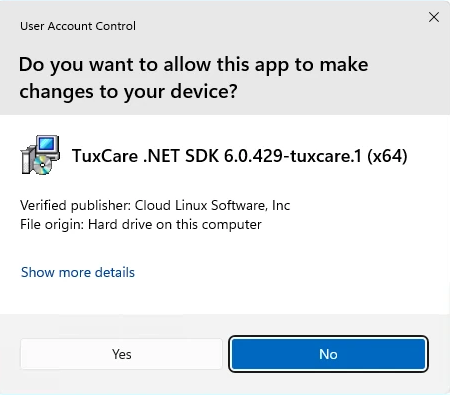
When Windows shows the User Account Control prompt, check that the verified publisher is Cloud Linux Software, Inc and click Yes. Clicking No cancels the installation of that file.
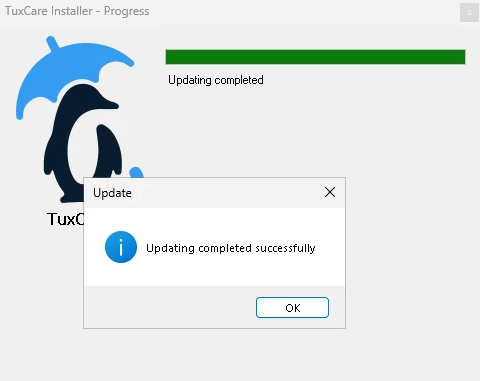
When the message Updating completed successfully appears, click OK. If the message lists a runtime that needs a restart, restart Windows before using it.
Verify the installation
Open Command Prompt, PowerShell, or Terminal and run:
dotnet --list-runtimes
dotnet --list-sdks
Example output:
Microsoft.NETCore.App 6.0.37-tuxcare.3 [C:\Program Files\dotnet\shared\Microsoft.NETCore.App]
Microsoft.AspNetCore.App 8.0.22 [C:\Program Files\dotnet\shared\Microsoft.AspNetCore.App]
8.0.416 [C:\Program Files\dotnet\sdk]
To check that an SDK works, create and run a test project:
dotnet new console -o MyTestApp
cd MyTestApp
dotnet run
Expected output:
Hello, World!
Additional Configurations
After installation, you can choose which .NET version each application uses, check which runtimes and SDKs you have, and uninstall them.
Choose the .NET Version for an Application
.NET keeps all installed versions side by side under C:\Program Files\dotnet, and each application picks its own. There is no default version to switch.
Runtime. An application requests a runtime in its
*.runtimeconfig.jsonfile (for example,Microsoft.NETCore.App 6.0.0). .NET uses the highest installed patch of that version: with6.0.37-tuxcare.1and6.0.37-tuxcare.3installed, the application runs on6.0.37-tuxcare.3. Other major versions, such as .NET 8 and 10, do not affect it. To change this behavior, setrollForwardin the application'sruntimeconfig.json, set theDOTNET_ROLL_FORWARDenvironment variable, or start the application withdotnet --fx-version <version> app.dll.SDK. The
dotnetCLI uses the newest installed SDK. To use a specific SDK for a project, put aglobal.jsonfile in the project folder:{ "sdk": { "version": "6.0.429-tuxcare.3", "rollForward": "latestPatch" } }
Useful Commands
where.exe dotnet— locates the dotnet executable on the system:where.exe dotnetExample output
C:\Program Files\dotnet\dotnet.exedotnet --info— displays information about installed SDKs, runtimes, and your OS:dotnet --infoExample output
.NET SDK (reflecting any global.json):
Version:   6.0.429
Commit:    ef6f5ce48c

Runtime Environment:
OS Name:     Windows
OS Version:  10.0.22631
OS Platform: Windows
RID:         win10-x64
Base Path:   C:\Program Files\dotnet\sdk\6.0.429\

global.json file:
  Not found

Host:
  Version:      6.0.36
  Architecture: x64
  Commit:       N/A

.NET SDKs installed:
  6.0.429 [C:\Program Files\dotnet\sdk]

.NET runtimes installed:
  Microsoft.AspNetCore.App 6.0.36 [C:\Program Files\dotnet\shared\Microsoft.AspNetCore.App]
  Microsoft.NETCore.App 6.0.36 [C:\Program Files\dotnet\shared\Microsoft.NETCore.App]
  Microsoft.WindowsDesktop.App 6.0.36 [C:\Program Files\dotnet\shared\Microsoft.WindowsDesktop.App]

Download .NET:
  https://aka.ms/dotnet-download

Learn about .NET Runtimes and SDKs:
  https://aka.ms/dotnet/runtimes-sdk-info
dotnet --list-sdks— lists all installed SDKs. Uninstall old versions after installing a new one:dotnet --list-sdksExample output
6.0.429 [C:\Program Files\dotnet\sdk]dotnet --list-runtimes— lists all installed runtimes:dotnet --list-runtimesExample output
Microsoft.AspNetCore.App 6.0.36 [C:\Program Files\dotnet\shared\Microsoft.AspNetCore.App]
Microsoft.NETCore.App 6.0.36 [C:\Program Files\dotnet\shared\Microsoft.NETCore.App]
Uninstallation
Run TuxCare Installer, untick the installed (green) runtime or SDK, and click Continue.
To remove everything installed by TuxCare Installer, open Settings → Apps, find TuxCare Installer, and click Uninstall. Then choose Uninstall products to remove all products installed by TuxCare Installer, or Keep products to remove only the installer.
A silent removal of TuxCare Installer, as deployment tools run it, cannot ask this question and keeps the products:
TuxCare.Installer.exe /uninstall /quiet
To uninstall the products too and release the registration, add UninstallProducts=1:
TuxCare.Installer.exe /uninstall /quiet UninstallProducts=1
After uninstalling .NET some files may remain in C:\Program Files\dotnet\ and C:\Users\<user>\.dotnet\. Delete these folders manually to fully remove .NET.
Frequent Issues
How do I update .NET if a new version is released?
Run TuxCare Installer: the new build appears in the list next to the installed one. Tick it and click Continue. To remove the old build, untick it.
With manual installation, download the latest installer and follow the manual installation steps above. After installing the new version, it's recommended to remove the previous one.
The installation fails with "needs administrator rights", or says it was cancelled.
Installing .NET changes the whole machine. Click Yes when Windows asks for permission (User Account Control), or run TuxCare Installer as administrator. Clicking No on the prompt cancels the installation of that file.
.NET shows "(Not Authenticated)" in TuxCare Installer.
Your license or token does not cover .NET. Contact [email protected].
"TuxCare .NET Standard Targeting Pack" stays in Settings → Apps after uninstalling an SDK.
Other SDKs on the machine share this package, for example, the one Visual Studio installs. Windows keeps it while another SDK still depends on it, so you can leave it in place.
What should I do if there are conflicts during installation?
If you encounter conflicts, try uninstalling the previous version before installing the new one. In most cases, .NET versions can coexist without issues, but removing the older version may help resolve compatibility problems.
What's Next?
 ELS NuGet Repository — Set up the TuxCare NuGet feed, install patched packages, and manage .NET package dependencies
 Official .NET documentation — Getting started guides, API reference, and platform fundamentals
