


.NET
Endless Lifecycle Support (ELS) for .NET from TuxCare provides security fixes for .NET that has reached its end of life. This allows you to continue running .NET applications without vulnerability concerns, even after official support has ended.
Supported Versions
| Windows Version | .NET 6 | .NET 8 | .NET 10 | Architectures |
|---|---|---|---|---|
| Nano Server 2019, 2022 | ✓ | ✓ | ✓ | x64 |
| Nano Server 2025 | — | ✓ | ✓ | x64 |
| Windows 11 (24H2, 23H2, 22H2 E/Edu) | ✓ | ✓ | ✓ | x64 |
| Windows 10 (22H2) | ✓ | ✓ | ✓ | x64 |
| Windows Server 2025 | — | ✓ | ✓ | x64 |
| Windows Server 2022, 2019, 2016, 2012-R2, 2012 | ✓ | ✓ | ✓ | x64, x86 |
| Windows Server Core 2022, 2019, 2016, 2012-R2, 2012 | ✓ | ✓ | ✓ | x64, x86 |
Other versions and architectures available upon request. Contact sales@tuxcare.com for more information.
Available Runtimes
Choose the component that fits your use case. For more details, refer to the official .NET documentation. TuxCare applies security patches to .NET for the above OS versions, ensuring continued stability and security even beyond the official end-of-life date.
The .NET SDK (Software Development Kit) is the recommended option if you plan to develop, build, test, or publish .NET applications. It includes the .NET Runtime (required to run .NET apps), the ASP.NET Core Runtime (for hosting web applications out of the box), and the .NET CLI and build tools for compiling and managing your projects.
With the SDK, you won't need to install separate runtimes for ASP.NET Core or the Desktop environment - everything is bundled together to streamline development and deployment.
Installation
Prerequisites
- A supported Windows version — see the compatibility table above
- Administrator rights
- Secure download link (tokenized URL) — contact sales@tuxcare.com to receive instructions for generating one
- Check if .NET is already installed — open Command Prompt (
cmd) or PowerShell and run:If .NET is already installed, the command will return the version number. If it's not installed, you'll see an error message. Install the latest version of .NET before uninstalling the old one to ensure a smooth transition without breaking the dependencies.dotnet --version
The following steps use the .NET SDK installation as an example. If you are installing a runtime instead, follow a similar process using the corresponding .msi file.
Download the installer
Use your tokenized URL to access the download page. Choose the appropriate runtime (SDK, Runtime, Desktop Runtime, or ASP.NET Core Runtime) and download the installer for your architecture (x64 or x86). Downloading the latest version is recommended.
The .NET SDK is installed via an
.exeinstaller. The .NET Runtime, Desktop Runtime, and ASP.NET Core Runtime are installed via.msifiles.In certain versions of some browsers (for example, Edge), you might see a warning after downloading. In this case, manually allow the download.
Run the installer
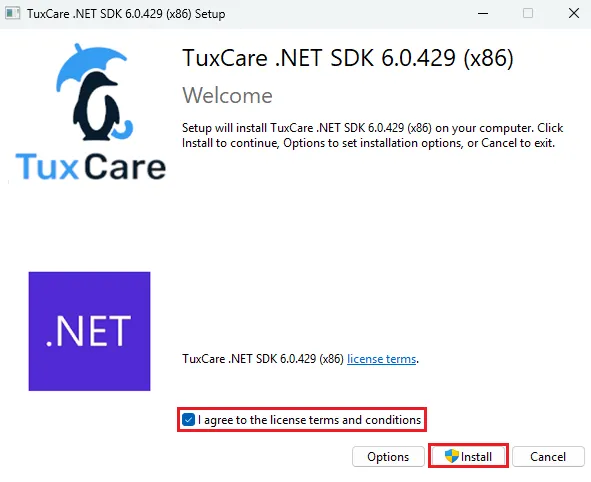
Double-click the downloaded file. Accept the license agreement and click Install.
Complete the installation
Wait for the process to finish, then click Close.
Verify the installation
Open Command Prompt or PowerShell and run:
dotnet --versionExample output:
6.0.429Create and run a test project
Create a new console application to confirm everything works:
dotnet new console -o MyTestAppExample output:
Welcome to .NET 6.0!
---------------------
SDK Version: 6.0.429

----------------------------------------------------------------------------
The template "Console App" was created successfully.

Processing post-creation actions...
Running 'dotnet restore' on C:\Users\user\MyTestApp\MyTestApp.csproj...
  Determining projects to restore...
  Restored C:\Users\user\MyTestApp\MyTestApp.csproj (in 115 ms).
Restore succeeded.
Navigate to the folder and run it:
cd MyTestApp
dotnet run
Expected output:
Hello, World!
Additional configurations
Useful commands
where.exe dotnet— locates the dotnet executable on the system:where.exe dotnetExample output:
C:\Program Files\dotnet\dotnet.exedotnet --info— displays information about installed SDKs, runtimes, and your OS:dotnet --infoExample output
.NET SDK (reflecting any global.json):
Version:   6.0.429
Commit:    ef6f5ce48c

Runtime Environment:
OS Name:     Windows
OS Version:  10.0.22631
OS Platform: Windows
RID:         win10-x64
Base Path:   C:\Program Files\dotnet\sdk\6.0.429\

global.json file:
  Not found

Host:
  Version:      6.0.36
  Architecture: x64
  Commit:       N/A

.NET SDKs installed:
  6.0.429 [C:\Program Files\dotnet\sdk]

.NET runtimes installed:
  Microsoft.AspNetCore.App 6.0.36 [C:\Program Files\dotnet\shared\Microsoft.AspNetCore.App]
  Microsoft.NETCore.App 6.0.36 [C:\Program Files\dotnet\shared\Microsoft.NETCore.App]
  Microsoft.WindowsDesktop.App 6.0.36 [C:\Program Files\dotnet\shared\Microsoft.WindowsDesktop.App]

Download .NET:
  https://aka.ms/dotnet-download

Learn about .NET Runtimes and SDKs:
  https://aka.ms/dotnet/runtimes-sdk-info
dotnet --list-sdks— lists all installed SDKs. Uninstall old versions after installing a new one:dotnet --list-sdksExample output:
6.0.429 [C:\Program Files\dotnet\sdk]
Uninstallation
Via Windows Settings

Open Settings → Apps → Installed Apps (or Apps & Features on older versions). Search for .NET SDK or .NET Runtime depending on what you've installed. Click on each entry and select Uninstall.
During the uninstall, a "Files in use" window can appear. Select the "Do not close applications. A reboot will be required" option and click OK to proceed.
A dialog window will appear. Click Uninstall. It should take a few minutes. When the process is finished, close the window.
Via Control Panel

Open Control Panel → Programs → Programs and Features. Search for .NET SDK or .NET Runtime, right-click on each entry and select Uninstall.
During the uninstall, a "Files in use" window can appear. Select the "Do not close applications. A reboot will be required" option and click OK to proceed.
A dialog window will appear. Click Uninstall. It should take a few minutes. When the process is finished, close the window.
Remove remaining files
After uninstalling .NET some files may remain in
C:\Program Files\dotnet\andC:\Users\<user>\.dotnet\. Delete these folders manually to fully remove .NET.
Frequent Issues
How do I update .NET if a new version is released?
Currently, to update .NET, you need to manually download the latest installer and follow the installation steps described above. After installing the new version, it's recommended to remove the previous one. In the future, an automatic update mechanism for the components will be provided.
What should I do if there are conflicts during installation?
If you encounter conflicts, try uninstalling the previous version before installing the new one. In most cases, .NET versions can coexist without issues, but removing the older version may help resolve compatibility problems.
 ELS NuGet Repository — Set up the TuxCare NuGet feed, install patched packages, and manage .NET package dependencies
 Official .NET documentation — Getting started guides, API reference, and platform fundamentals
