


PHP
Endless Lifecycle Support (ELS) for PHP from TuxCare provides security fixes for PHP versions that have reached their end-of-life. This allows you to continue running your server vulnerability-free.
About ALT-PHP
alt-php is a component provided by TuxCare designed for managing PHP versions on web servers and enabling users to choose PHP versions for their websites.
Here are the key features and characteristics of alt-php:
Multiple PHP Versions - alt-php allows the installation and usage of various PHP versions on a single web server. This enables users to select the PHP version that best suits their web applications.
User Segmentation - alt-php allows hosting providers and web server administrators to provide different PHP versions for different users. Each user can choose the PHP version that suits their website.
Enhanced Compatibility - alt-php is designed to ensure maximum compatibility with various web applications and frameworks. This includes optimizations and changes to make it compatible with a wide range of PHP applications.
Updates and Support - CloudLinux provides regular updates for alt-php, including bug fixes, performance improvements, and updates for new PHP versions. This helps ensure the security and currency of PHP usage.
Management Tools - alt-php usually comes with a set of management tools, such as PHP Selector, allowing users to manage PHP versions and enable/disable various PHP extensions.
alt-php provides a more flexible and convenient environment for working with different PHP versions on a single server, which is particularly useful in a web hosting environment where multiple users have varying requirements for PHP versions for their web applications.
Supported OS and PHP versions
| OS | Package Type | OS Version |
|---|---|---|
| EL 7 ( Amazon Linux 2, CentOS, CloudLinux, Oracle Linux, etc.) | RPM | 7.x |
| EL 8 ( AlmaLinux, CentOS, CentOS Stream, CloudLinux, Oracle Linux, etc.) | RPM | 8.x |
| EL 9 ( AlmaLinux, CentOS, CloudLinux, Oracle Linux, etc.) | RPM | 9.x |
| EL 10 ( AlmaLinux, CloudLinux, Oracle Linux, etc.) | RPM | 10.x |
| Ubuntu | DEB | 16.04, 18.04, 20.04, 22.04, 24.04 |
| Debian | DEB | 10, 11, 12, 13 |
| Windows | - | Windows Server 2019, 2022, 2025 |
For supported PHP versions, see cve.tuxcare.com.
Supported architecture: x86_64 (64-bit) on Linux
Other versions and architectures available upon request. Contact sales@tuxcare.com for more information.
Installation on Linux
Prerequisites
- A valid TuxCare ELS license key — contact sales@tuxcare.com to obtain one
- Root or
sudoaccess to the server - Amazon Linux 2-specific. Before installing
alt-php, make surelibvpxis installed. Amazon Linux 2 provides two versions of libvpx: 1.9 (the default) and 1.3.alt-phprequires 1.3 for compatibility with EL 7 systems like CentOS 7:
sudo yum install libvpx-1.3.0
Download the installer script
wget https://repo.alt.tuxcare.com/alt-php-els/install-els-alt-php-rpm-repo.shRun the installer script with your license key
The script registers the server with CLN, adds the PGP key and repository.
sh install-els-alt-php-rpm-repo.sh --license-key XXX-XXXXXXXXXXXXInstall a PHP version
Each version can be installed individually or all versions at once.
yum groupinstall alt-php73To install all versions at the same time:
yum groupinstall alt-phpVerify the installation
Check that the desired PHP version is installed:
rpm -qa | grep alt-php
Useful Commands and Usage
When you deploy an updated version of PHP through PHP ELS, using your system's regular update tool (yum, dnf, apt), the new version will be installed under /opt/alt/php[version]/. This means that all modules, configurations and additional files pertaining to this version will be contained inside that path. Different versions of PHP will each have their own path and can coexist without issues on the same system. Below you will find the location of all the relevant files, should you want to make any changes.
To check whether the package is installed and see its current version, use the following command based on your OS:
sudo yum list installed | grep phpInstallation on Windows
TuxCare provides two ways to install ELS PHP on Windows: manually by downloading and configuring PHP from the repository, or using the TuxCare Installer — a graphical tool that automates the process.
Prerequisites
- Secure download link (tokenized URL) — contact sales@tuxcare.com
- Administrator access to the Windows system
Troubleshooting: browser credential prompts
Always include a trailing slash at the end of your tokenized URL (e.g. https://TOKEN@windows.tuxcare.com/php/). Without it, the server issues a redirect that strips the authentication token, causing the browser to prompt for credentials on every page. With the trailing slash, credentials are cached and subfolder navigation works as expected.
How to use a tokenized URL
Your tokenized URL provides access to the TuxCare PHP for Windows repository. It contains an authentication token embedded in the URL:
https://<YOUR-TOKEN>@windows.tuxcare.com/php/
Always include the trailing slash. This applies to all directory URLs, including version subfolders:
- ✅
https://TOKEN@windows.tuxcare.com/php/— works correctly - ❌
https://TOKEN@windows.tuxcare.com/php— may prompt for credentials
Use a private browsing window. We recommend opening the tokenized URL in a private (incognito) window to ensure a clean session with no cached credentials that might interfere with token authentication.
- Chrome / Edge:
Ctrl+Shift+N(Windows) orCmd+Shift+N(macOS) - Firefox:
Ctrl+Shift+P(Windows) orCmd+Shift+P(macOS)
Browsing subdirectories. Once you open the URL with a trailing slash in a private window, the browser caches your credentials for the session. If you are still prompted when entering a subdirectory, manually insert the token into the URL — prepend <YOUR-TOKEN>@ before windows.tuxcare.com in the address bar.
Example walkthrough:
- Open the repository root:
https://<YOUR-TOKEN>@windows.tuxcare.com/php/ - Click on
7.4.33/. If the browser navigates tohttps://windows.tuxcare.com/php/7.4.33/and prompts for a password, edit the address bar and add the token:https://<YOUR-TOKEN>@windows.tuxcare.com/php/7.4.33/ - Click on
tuxcare.els8/. If prompted again, add the token to the URL:https://<YOUR-TOKEN>@windows.tuxcare.com/php/7.4.33/tuxcare.els8/ - You see the ZIP files listed. Click on the file to download it directly.
Downloading files directly. If you already know which file you need, skip browsing and build the full URL from the repository root, version, release folder, and file name:
https://<YOUR-TOKEN>@windows.tuxcare.com
  /php/<version>/tuxcare.els<N>/<filename>.zip
PowerShell:
$base = "https://<YOUR-TOKEN>@windows.tuxcare.com"
$file = "/php/7.4.33/tuxcare.els8/" +
  "php-7.4.33-tuxcare-els8-nts-Win32-vc15-x64-signed.zip"
Invoke-WebRequest -Uri "$base$file" -OutFile "php-7.4.33.zip"
curl:
BASE="https://<YOUR-TOKEN>@windows.tuxcare.com"
FILE="/php/7.4.33/tuxcare.els8/\
php-7.4.33-tuxcare-els8-nts-Win32-vc15-x64-signed.zip"
curl -O "${BASE}${FILE}"
Open the repository in your browser
Navigate to your tokenized URL:
https://<YOUR-TOKEN>@windows.tuxcare.com/php/You will see a directory listing of all available PHP versions (e.g.
5.6.40/,7.4.33/,8.1.33/). Click on the version you need.Choose the correct archive
Inside each version folder you will find subfolders named
tuxcare.elsN/, whereNis the TuxCare release number. Always select the subfolder with the highest number, as it contains the latest security updates. Each archive follows this naming pattern:php-<version>-tuxcare-els<N>-<thread>-Win32-<vc>-<arch>-signed.zipSelect the archive that matches your environment:
Component Options How to choose Thread safety nts(Non-Thread Safe) orts(Thread Safe)Use ntsfor IIS with FastCGI, nginx, or CLI. Usetsonly for Apachemod_php.Architecture x64orx86Use x64for 64-bit Windows (most common). Usex86only for 32-bit systems.VC runtime vc15,vs16,vs17, etc.Indicates the required Visual C++ Redistributable. Download from Microsoft if not installed. For example, to install PHP 7.4 (NTS, 64-bit), download
php-7.4.33-tuxcare-els8-nts-Win32-vc15-x64-signed.zip. This archive requires the Visual C++ Redistributable for Visual Studio 2017 (vc15).Extract the archive
Create a destination folder (e.g.
C:\PHP) and extract the ZIP contents into it. Right-click the downloaded ZIP file, select Extract All..., set the destination, and click Extract.Alternatively, use PowerShell:
New-Item -ItemType Directory -Path "C:\PHP" -Force
Expand-Archive `
  -Path "$HOME\Downloads\php-7.4.33-tuxcare-els8-nts-Win32-vc15-x64-signed.zip" `
  -DestinationPath "C:\PHP"
After extraction, your directory should contain
php.exe,php.ini-development,php.ini-production, and anextfolder with extension DLLs.Configure php.ini
Create a configuration file from one of the provided templates — copy
php.ini-developmentfor development orphp.ini-productionfor production tophp.ini:Copy-Item "C:\PHP\php.ini-production" "C:\PHP\php.ini"Open
C:\PHP\php.iniin a text editor, set the extension directory, and enable the extensions your application requires:extension_dir = "C:\PHP\ext" extension=curl extension=mbstring extension=mysqli extension=opensslAdd PHP to the System PATH
To make
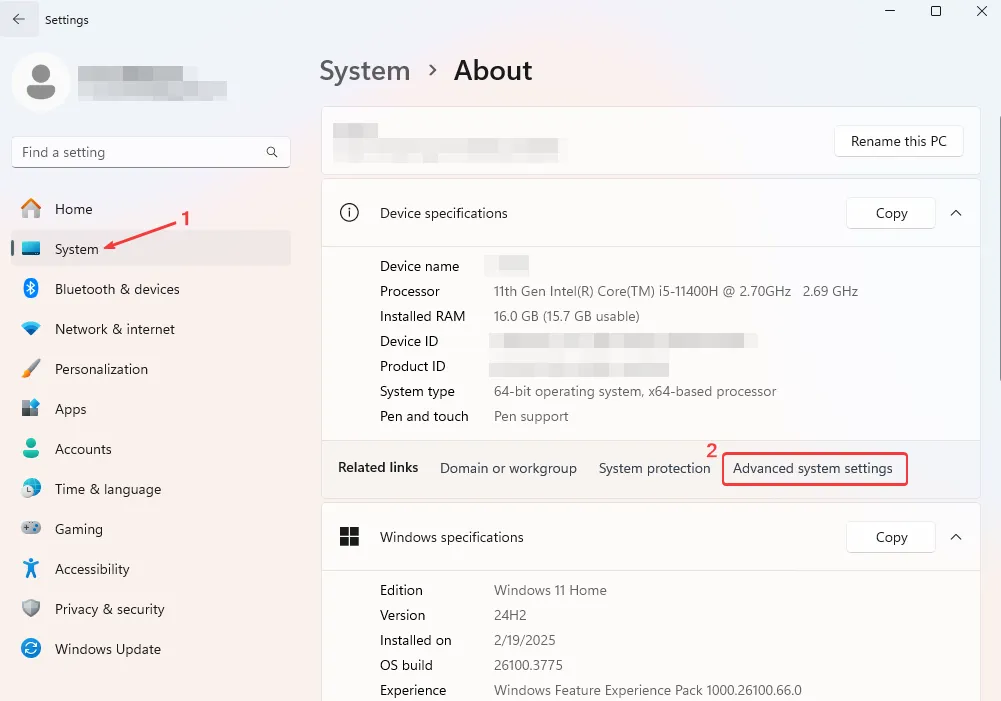
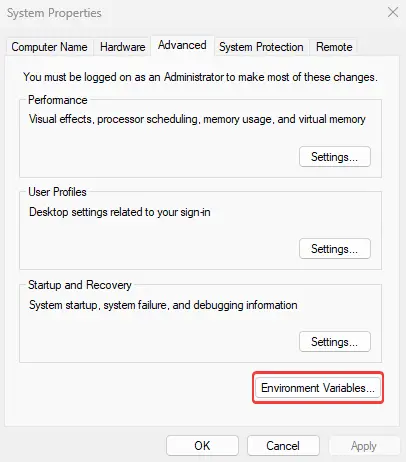
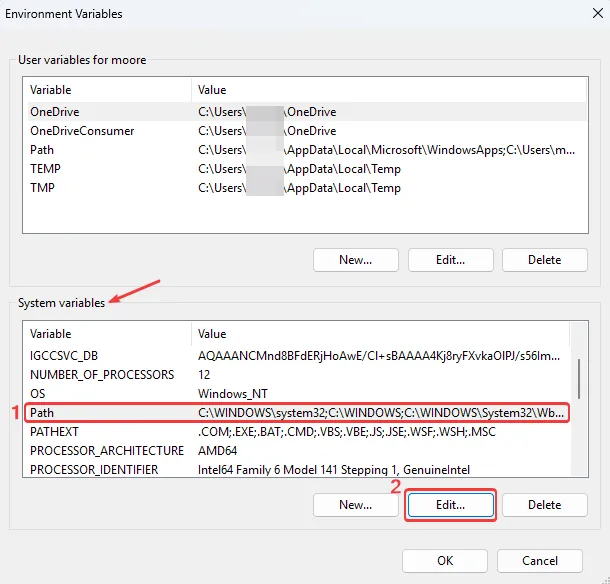
phpavailable from any terminal, add the PHP directory to the System PATH. Open Settings > System > About → Advanced system settings → Environment Variables. Under System variables, find Path, click Edit, then click New and addC:\PHP.Alternatively, use PowerShell (run as Administrator):
$currentPath = [System.Environment]::GetEnvironmentVariable("Path", "Machine")
[System.Environment]::SetEnvironmentVariable("Path", "$currentPath;C:\PHP", "Machine")
Close and reopen any terminal windows for the change to take effect.
Verify the installation
Open Command Prompt, PowerShell, or Terminal and run:
php -vYou should see output like:
PHP 7.4.33 (cli) (built: Mar 10 2026 10:12:00)
Copyright (c) The PHP Group
Zend Engine v3.4.0, Copyright (c) Zend Technologies
To verify that the required extensions are loaded, run
php -m.
How to find System PATH
Right-click This PC and select Properties, or search for Settings > System > About in the Start menu.
Click Advanced system settings.
Click on Environment Variables.
Under System variables, find Path and click Edit.
You will see your PHP
C:\PHPdirectory added.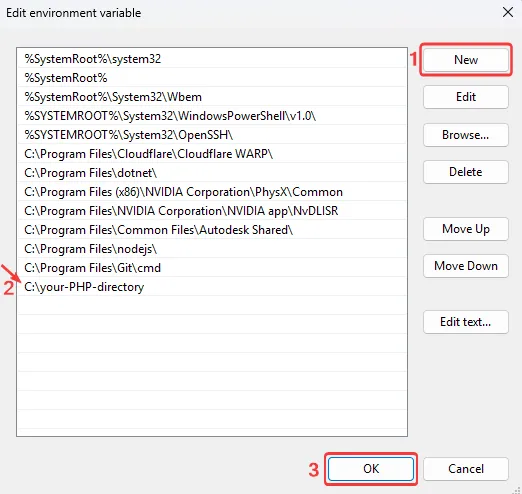
Additional configurations
Depending on your ELS PHP usage purpose, additional configurations may be required. You can integrate PHP with other tools, for example, IIS or WordPress. For further details, refer to the official PHP documentation.
Change default PHP version
If you have multiple PHP versions installed and want to change the default, update your System Path environment variable. Open Settings > System > About → Advanced system settings → Environment Variables. Under System variables, find Path and click Edit. Move the desired PHP version's path to the top, and remove or move down other PHP paths. Click OK, restart your terminal, and verify with php -v.
Extensions
Extensions are managed through the php.ini file located in your PHP installation directory (e.g. C:\PHP). Open it in a text editor and find the extensions section. Remove the semicolon ; at the beginning of a line to enable an extension, or add ; to disable it.
;extension=curl
extension=gd2
;extension=mbstring
extension=mysqli
extension=pdo_mysql
Increase upload/memory limits
If you're integrating PHP with applications like WordPress, you might need to increase memory and upload size limits. Open the php.ini file and set the values as needed:
upload_max_filesize=40M
post_max_size=40M
memory_limit=256M
Uninstallation
To uninstall a PHP version manually, delete the PHP installation directory (e.g. C:\PHP) and remove the corresponding path from System Path.
To uninstall via TuxCare Installer, open Settings > Apps, find TuxCare Installer and click Uninstall.
SaxonC Use Case
You can extend alt-php with additional modules. Below is an example of installing the SaxonC PHP extension.
Although this guide uses alt-php82 in its examples, the same installation steps apply to alt-php83 and newer versions. Replace php82 with your target version in all commands and file paths.
This guide also uses SaxonC-HE as an example. Be sure to adjust file names and paths to match the version you downloaded.
Prerequisites
- Saxon 12+ (required for PHP 8.2+ compatibility) — download from saxonica.com
httpd(orapache2),gcc-c++(org++) with minimum C++14 supportalt-php82-devel(or matching version)
| Edition | License | Key Features |
|---|---|---|
| SaxonC-HE | Open Source | XSLT 3.0, XPath 3.1, XQuery 3.1 (Basic) |
| SaxonC-PE | Commercial | HE + ICU localization, JSON support |
| SaxonC-EE | Commercial | PE + Schema validation, Optimization |
Set up SaxonC
Download SaxonC
Download from the official Saxonica download page. Create a working directory and move the downloaded zip file into it:
mkdir saxon && cd saxon
mv ../SaxonCHE-linux-x86_64-12-9-0.zip .
Extract the archive
Unzip the downloaded file and verify:
unzip SaxonCHE-linux-x86_64-12-9-0.zip
ls
Example output:
SaxonCHE-linux-x86_64-12-9-0 SaxonCHE-linux-x86_64-12-9-0.zipInstall the libraries
Starting with version 12.6,
/opt/saxonica/is the recommended installation path. Navigate into the extracted directory and copy all Saxon files:cd SaxonCHE-linux-x86_64-12-9-0 sudo mkdir -p /opt/saxonica/ sudo cp -r SaxonCHE/* /opt/saxonica/The installed structure should contain
bin,include, andlibdirectories.Configure environment variables
Add the following lines to your
.bashrcor/etc/profile.d/saxon.sh.The
LD_LIBRARY_PATHvariable must point to the Saxon libraries:export LD_LIBRARY_PATH="/opt/saxonica/lib:$LD_LIBRARY_PATH"To run the Transform, Query, and Validate (EE only) binaries, set the
PATHvariable:export PATH="/opt/saxonica/bin:$PATH"If the PHP web server can't find the Saxon libraries, you may also need to add
/opt/saxonica/libto a new file in/etc/ld.so.conf.d/and runldconfig.
Build the PHP extension
Install alt-php82-devel
Install the development package required for compiling PHP extensions:
dnf install alt-php82-develVerify that
phpizeis available:ls /opt/alt/php82/usr/bin/phpizePrepare the build environment
Navigate to the PHP extension source directory within the extracted Saxon archive and run
phpizeto prepare the build:cd php/src/ /opt/alt/php82/usr/bin/phpizeExample output:
Configuring for:
PHP Api Version:         20220829
Zend Module Api No:      20220829
Zend Extension Api No:   420220829
Configure and compile
Configure the extension build with Saxon support and link to the Saxon libraries:
./configure --with-saxon --with-php-config=/opt/alt/php82/usr/bin/php-config LDFLAGS="-L/opt/saxonica/lib"Compile and install:
make
sudo make install
Example output:
Installing shared extensions: /opt/alt/php82/usr/lib64/php/modules/Enable the extension
Create a configuration file that tells PHP to load the extension:
tee -a /opt/alt/php82/etc/php.d/20-saxon.ini <<EOF
; configuration for php Saxon HE/PE/EE module
extension=saxon.so
EOF
Verify that the Saxon extension appears in the list of loaded modules:
/opt/alt/php82/usr/bin/php -m | grep saxonExample output:
saxoncVerify with a test script
Run a quick test to confirm the extension works:
/opt/alt/php82/usr/bin/php -ddisplay_errors=E_ALL  << 'EOF'
<?php
  $saxonProc = new Saxon\SaxonProcessor();
  $transformer = $saxonProc->newXslt30Processor();
  $executable = $transformer->compileFromString("
    <xsl:stylesheet version='2.0' xmlns:xsl='http://www.w3.org/1999/XSL/Transform'>
        <xsl:template name='go'><a/></xsl:template>
    </xsl:stylesheet>
");
  $root = $executable->callTemplateReturningValue("go");
  $node = $root->getHead()->getNodeValue();
  echo "$node \n";
EOF
Example output:
<a/>If you are using php-fpm or Apache, restart the services.
PHP extensions list
PHP extensions are modules that extend the functionality of the PHP programming language. These extensions provide additional capabilities for working with various types of data, performing specific tasks, interacting with external resources and supporting various protocols.
The PHP core includes many built-in extensions that provide basic functionality, such as working with databases, string processing, working with images, and others. However, to support more specific tasks and third-party libraries, you can use additional PHP extensions.
| Reflection SPL SimpleXML apc apm ares bcmath bcompiler big_int bitset bloomy bz2 bz2_filter calendar coin_acceptor crack ctype curl date dba dbase dbx dom doublemetaphone eaccelerator enchant exif ffmpeg* | fileinfo filter ftp gd gender geoip geos gettext gmagick gmp gnupg haru hash hidef htscanner http huffman iconv idn igbinary imagick imap inclued inotify interbase intl ioncube_loader | json ldap libxml lzf mailparse mbstring mcrypt memcache memcached mhash mongo msgpack mssql mysql mysqli ncurses oauth odbc opcache openssl pcntl pcre pdo pdo_dblib pdo_firebird | pdo_mysql pdo_oci* pdo_odbc pdo_pgsql pdo_sqlite pgsql phar posix pspell quickhash radius rar readline recode redis rsync session shmop snmp soap sockets sourceguardian spl_types sqlite ssh2 standard stats stem | stomp suhosin sybase_ct sysvmsg sysvsem sysvshm tidy timezonedb tokenizer translit uploadprogress uuid wddx xcache xcache_3 xdebug xhprof xml xmlreader xmlrpc xmlwriter xrange xsl yaf yaz zend_optimizer zip zlib |
* CentOS 7, CloudLinux 7, etc.
 Machine-readable security data — OVAL, CSAF, Errata, and RSS feeds for PHP ELS
 PHP Changelog — latest updates, fixes, and enhancements for ALT-PHP
